How to Use Speech Recognition Priority Words
Help your AI receptionist hear recurring business-specific names, service terms, and brand words correctly during phone calls.
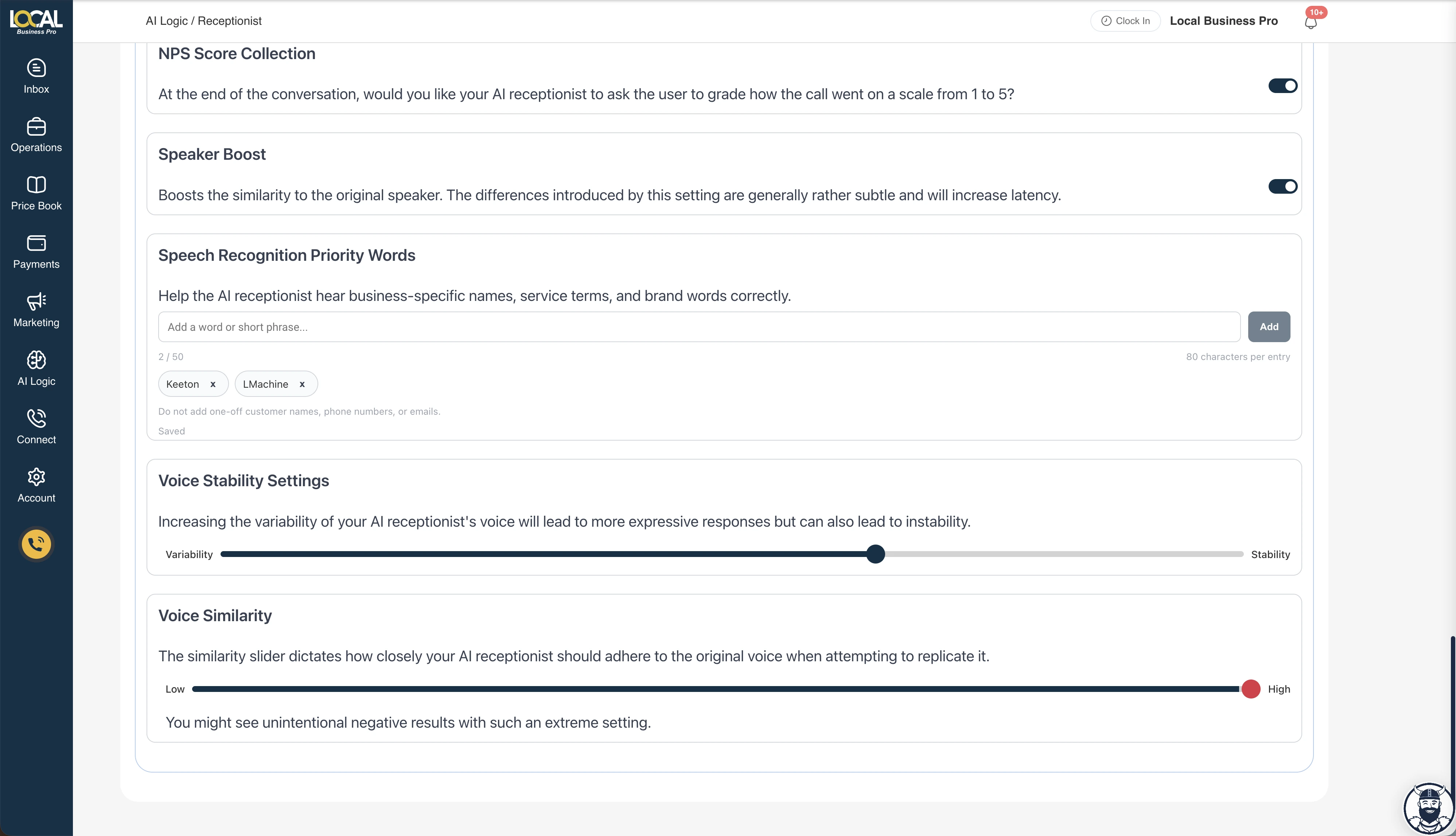
Quick Answer: Go to AI Logic / Receptionist, find Speech Recognition Priority Words, add recurring business-specific words or short phrases, and wait for the setting to show Saved. Use this for durable vocabulary like staff names, service terms, and brand words. Do not use it for one-off customer names, phone numbers, or emails.
When to Use Priority Words
Use priority words when the AI receptionist repeatedly hears a recurring business word incorrectly, or when callers often use a name or service term that ordinary speech recognition may confuse with something else.
Good examples:
- Business names and brand words
- Owner, dispatcher, or technician names
- Common service names customers ask about
- Product names, equipment names, and branded packages
- Local words or phrases that matter to your calls
What Not to Add
Do not add one-time customer information to this list.
Avoid:
- One-off customer names
- Phone numbers
- Full email addresses
- Private customer details
- Temporary call notes
Those details should be captured, spelled back, and confirmed during the call instead of saved as permanent recognition hints.
How to Add a Priority Word
- Open AI Logic.
- Select Receptionist.
- Scroll to Speech Recognition Priority Words.
- Type a word or short phrase in the input.
- Click Add.
- Confirm the word appears as a tag and the section shows Saved.
Changes apply to future calls after the setting is saved.
Using It on Mobile
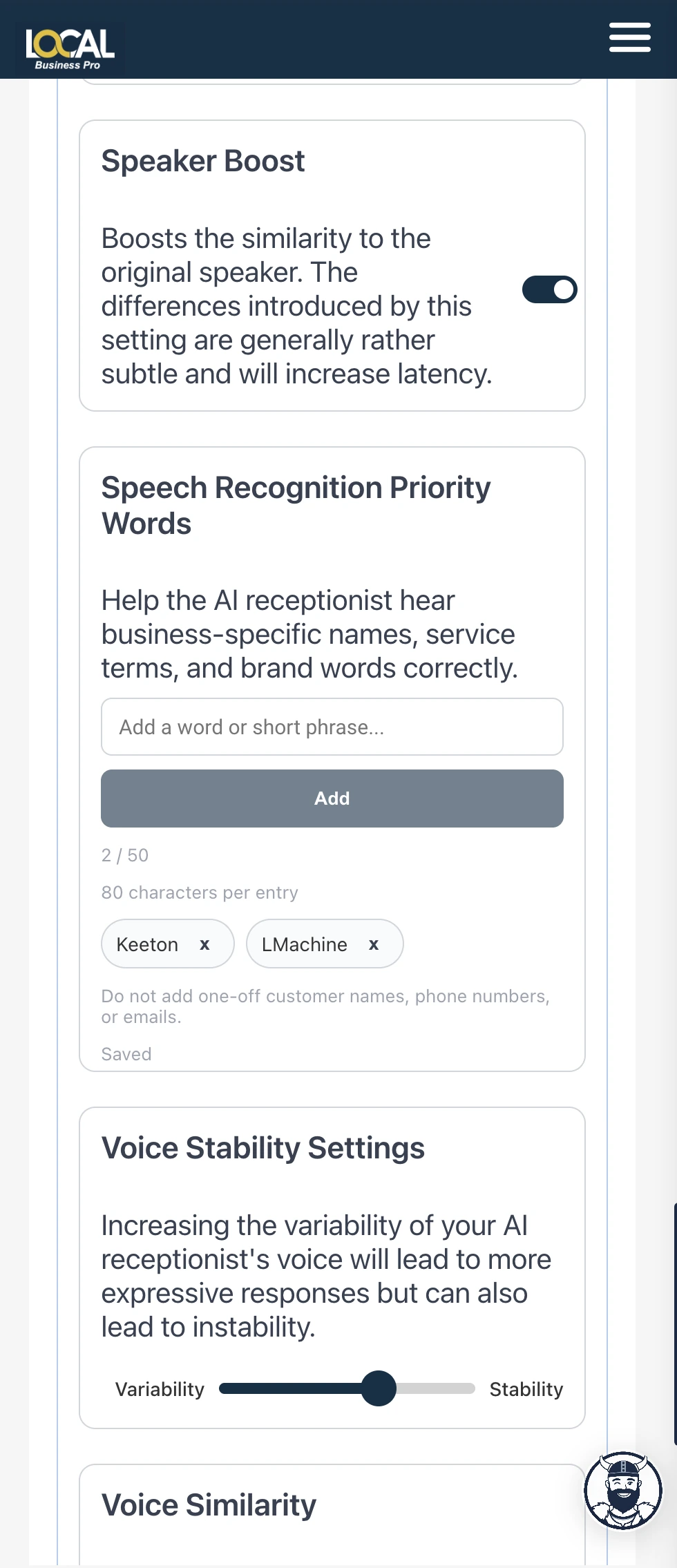
The same setting is available on mobile. The input and Add button stack vertically, but the rules are the same: add short, recurring vocabulary and wait for Saved.
Limits
- Up to 50 priority words or phrases.
- Up to 80 characters per entry.
- Short phrases work better than long instructions.
- The list saves automatically after changes.
Best Practices
- Start with words that have already caused call-quality or follow-up issues.
- Add recurring business vocabulary, not every possible customer name.
- Keep spelling exact and avoid extra punctuation.
- Review the list when you add new services, brands, or team members.
- Test a call after adding important words.
Priority words are not a script, prompt, or replacement for confirmation. If a caller spells a name or email during the call, the AI should still use the caller's spelled answer as the stronger signal.
Troubleshooting
If the AI still hears a word wrong after you add it:
- Check that the word appears as a saved tag.
- Make sure the word is not only a one-off caller detail.
- Review the call recording and transcript to confirm whether the issue is speech recognition, caller audio quality, or AI reasoning.
- If the caller spelled the word and the AI still saved the wrong value, contact support with the conversation ID so we can inspect the capture behavior.

Bizzy Can Do This For You
Instead of doing this manually, just tell Bizzy:
"Help me add speech recognition priority words"
Or navigate to: AI Logic / Receptionist
Tags:
Was this article helpful?
Last updated: June 26, 2026
Related Articles
New: Speech Recognition Priority Words for Your AI Recep...
Give your AI receptionist recurring business names, service terms, and brand words that can help it better hear the lang...
Setting Up Your AI Voice Receptionist
A complete guide to activating and configuring your AI-powered phone assistant.
Troubleshooting AI Voice Issues
Solutions for common AI Voice problems including call quality, recognition, and transfer issues.
How to Review AI Conversation Quality Daily
Establish a daily review routine to monitor AI performance and catch issues early in Local Business Pro.